# How to register campaign creatives
Once your campaign is created, you must upload at least one creative for it to run.
To check the required creatives:\
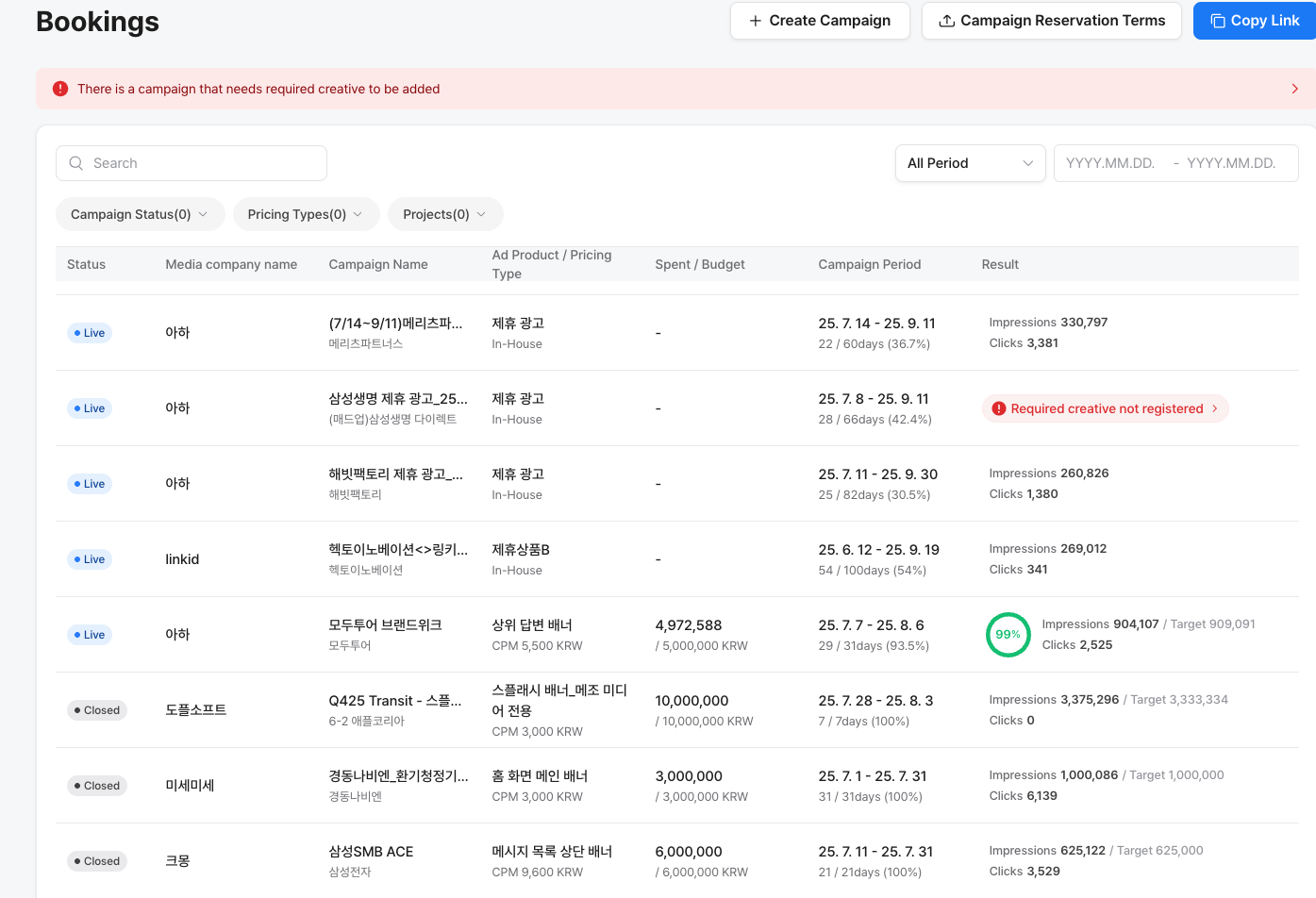
Go to **Bookings > Click the Campaign** \
Then click **Missing Required Creatives** to see what needs to be added.
## Registering a Creative
1. **Go to Bookings> Click the Campaign and scroll down to the Creatives section.**\
You can upload the creatives received from advertiser. Please refer to the creative guide available in the console and on the ad platform.
2. **Opening the Ad Creative menu**
**Use Creative Template**
* **Template ON:** Advertisers can use pre-designed or specified templates provided by Adrop to upload creatives easily.
* **Template OFF:** Advertisers can upload custom image creatives freely.
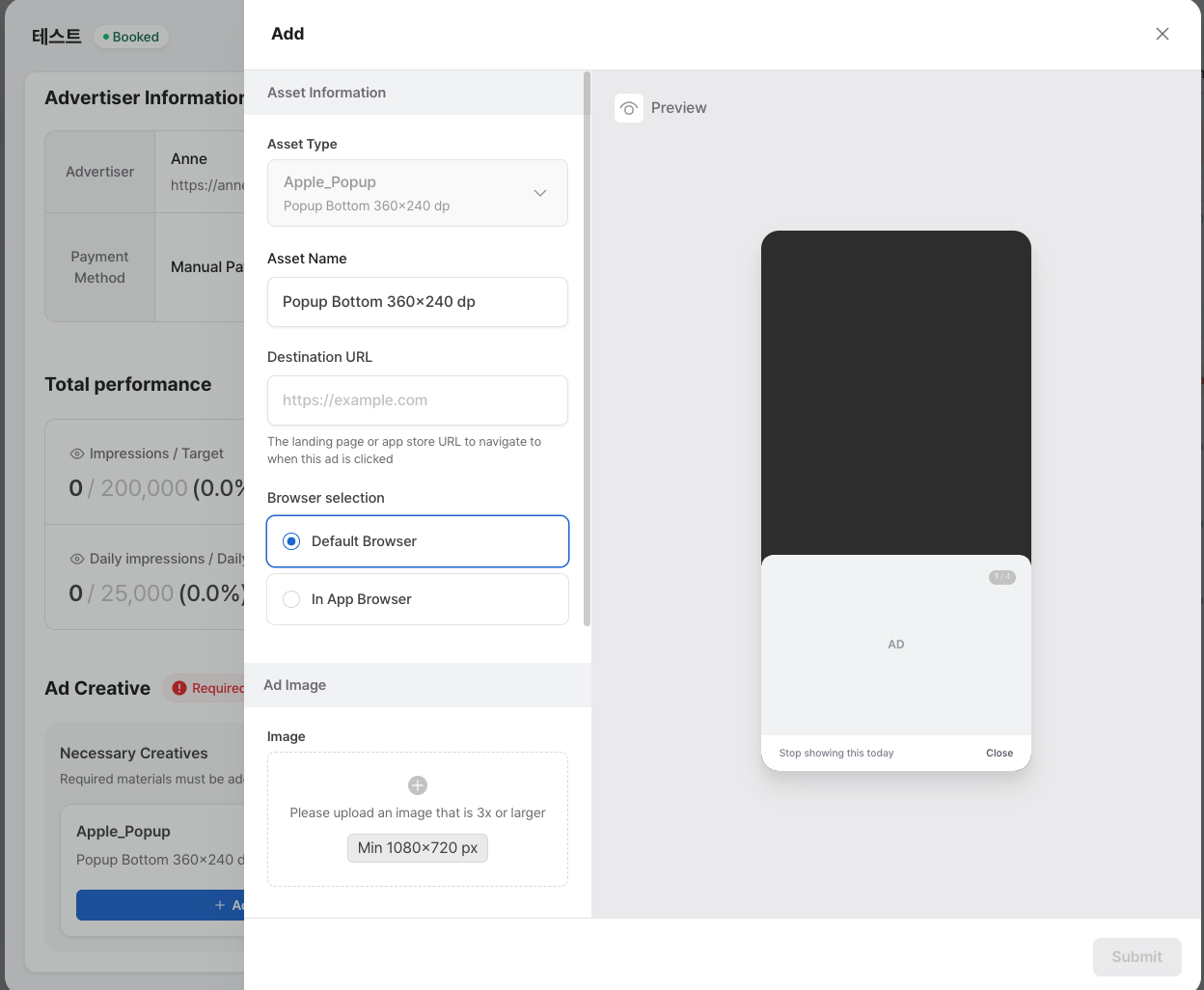
**Creative Details/ Asset Information**
* **Asset Type**\
You can upload creatives per unit set (ad placement group).
* **Asset Name**\
The creative type and size will be pre-filled based on presets.\
We recommend giving each creative a unique name so performance can be tracked per creative.
* **Destination URL**\
Enter the URL where users will be taken to **after clicking the ad**.
Use a link starting with `https://` for web browser landing.
Use an app scheme (e.g., `service://`) for in-app deep linking.
* **Browser Selection**\
Select which browser or app environment will open the destination URL when the ad is clicked.\
→ Learn more about browser settings for campaign creatives. [https://help.adrop.io/publisher-guide/manage-campaigns/add-creatives/browser](https://help.adrop.io/en/campaign-reservation-management/how-to-register-campaign-creatives/setting-the-campaign-creative-browser-in-console)
* **Ad Image**\
Upload an image that is **3x the size** of the display size registered by the media partner.\
This ensures high resolution and supports responsive layouts.