# Creating and Running In-House Ad Products & Campaigns
In-house ad products are not visible to external advertisers. Only users with specific email addresses or domains can access them.
### I. To create an in-house ad product:
1. Go to **Ad Console > Ad Products** and click **Create Ad Product**.
2. In the billing type section, turn on the **In-House** option.
* When this option is enabled, the product won’t be visible to external advertisers.
* Only users or companies with approved access can view and book this product.
3. Once the product is created, you’ll need to **add the accounts or domains** that are allowed to run in-house campaigns.
* First go to setting in Console. In the Ad Platform Information, click **Add** to edit the Advertiser Allow List.
* Add the accounts that should have access.
* After adding them, click **Save** to apply the changes.
That’s it — your in-house product is now restricted and only accessible to the users you’ve approved.
Once you’ve created a private in-house ad product following the steps above, you can now run campaigns through your **in-house ad platform**.
To do this, access the ad platform and create a new **in-house ad platform**.\
(You can check your current platform info under “My Ad Platform”.).
[https://help.adrop.io/publisher-guide/settings/ads-platform](https://help.adrop.io/en/setting/ad-platform)
For detailed steps, refer to the **How to Create an Ad Platform** guide.
[https://help.adrop.io/advertise-guide/reservation-campaigns/platform-login](https://help.adrop.io/en/creating-an-ad-product/broken-reference)
### II. How to create an In-House Campaign in the Publisher Console
Once your ad product and in-house ad platform are set up:
* Go to **Bookings** and click **"Create Campaign**."
* Select your in-house product and choose campaign dates.
* Review the campaign info and click **Next**.
* Select an **ad account** to track performance.
> If you don’t have an ad account set up yet, see \[How to Create an In-House Ad Account]. [https://help.adrop.io/publisher-guide/settings/ads-platform/create-ad-account](https://help.adrop.io/en/setting/ad-platform/create-an-ad-account)
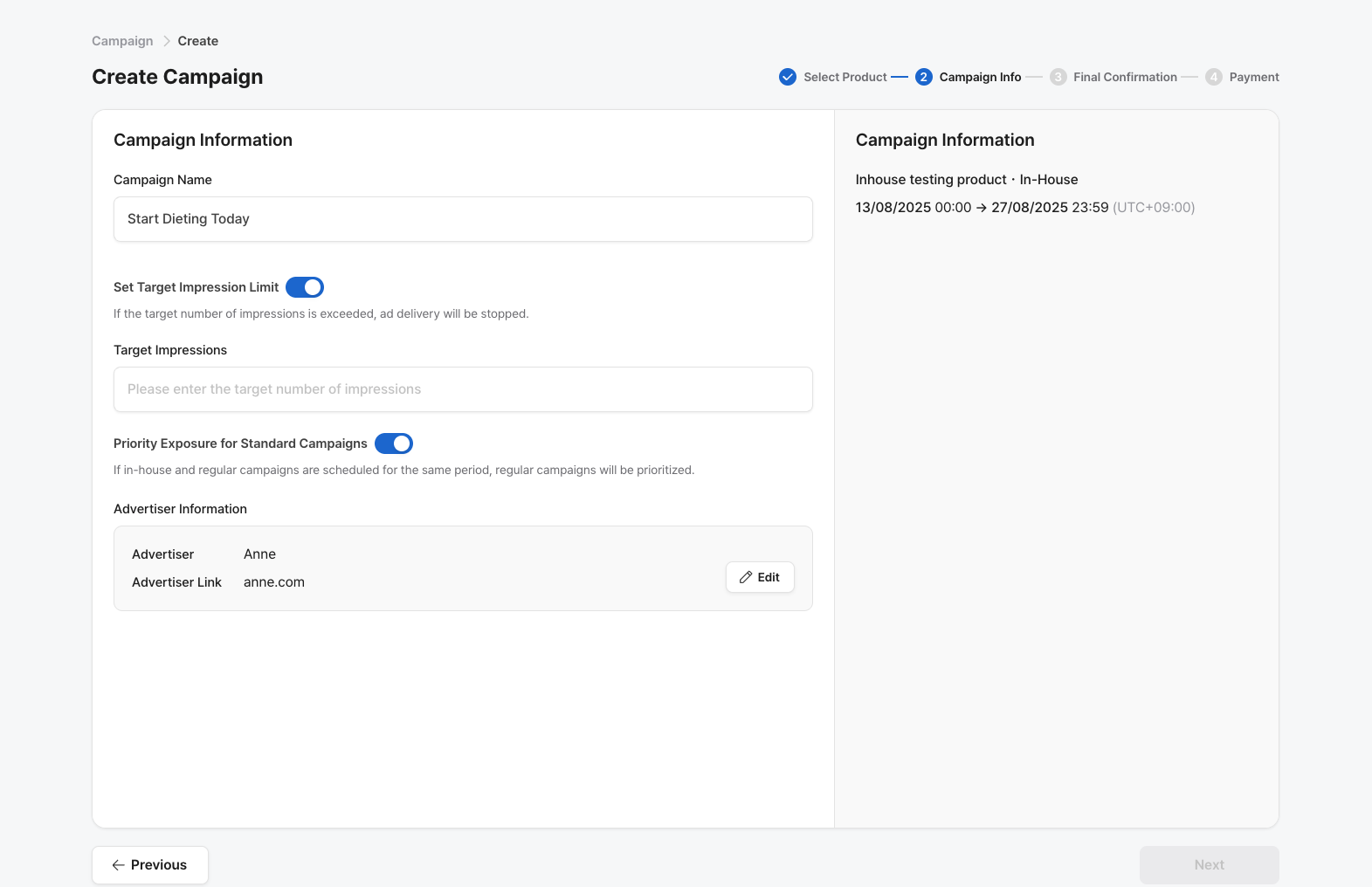
* Set your **Campaign Name** and **Ad Account**, then click **Next**.
#### Setting Target Impression Limit: You can control whether the campaign stops after reaching a set number of impressions.
* **Target Impression Limit: ON**\
The campaign will automatically stop once the target number of impressions is reached.
* **Target Impression Limit: OFF**\
No limit will be set for impressions. The campaign will continue to run without restriction.
When an in-house campaign runs during the same period as a **standard campaign**, you can choose which one should be prioritized in delivery.
* **Priority Exposure for Standard Campaigns ON:** "**Standard Campaigns**" will be shown first, before any in-house campaigns. The delivery order is fixed.
* **Priority Exposure for Standard Campaigns OFF**\
There’s **no priority**—regular and in-house campaigns will be served randomly.
Lastly, please add the required creatives to run the in-house campaign.
### III. Running In-House Campaigns on the Ad Platform
Once you've created an in-house advertiser account on the ad platform, you can view the in-house ad products created in the console and start booking campaigns.
1. Go to **Bookings** and click **"Create Campaign"** from the left navigation menu.
2. Select the **in-house ad product** you want to use.
3. Choose the **desired campaign dates**.
4. Enter the basic campaign information such as advertiser's name, schedule, and target metrics.
* If the advertiser's name is not registered, first you need go to **console>> settings>> view my ad platform>> add the name and link of the advertiser** to create an ad account. This will allow you to select advertiser account when creating campaigns.
* If you need help, refer to the **Campaign Booking Guide** for step-by-step instructions. [https://help.adrop.io/advertise-guide/reservation-campaigns/generate-campaigns](https://help.adrop.io/en/campaign-reservation-management/how-to-create-a-campaign)
### Setting a Goal Impression Limit(In-house Campaigns)
You can set a **goal impression limit** to stop the ad from running once the target number of impressions is reached. Please enter the desired number in the **“Target Impressions”** field.
After the campaign is booked and set up, make sure to upload the required creatives.
For detailed instructions, please refer to the [**Creative Upload Guide**](https://help.adrop.io/en/creating-an-ad-product/broken-reference).
### III. Review & Approve Campaign in the Ad Console
Once the in-house campaign is booked and creatives are uploaded on the ad platform, switch to the **Ad Console** to review and approve the campaign.
#### 1. Creative Review
* Go to **Bookings** in the left navigation menu and review the creatives submitted for the new in-house campaigns.
* You can approve or reject the advertiser’s creatives using the same process.
#### 2.Campaign Approval
* Once the creatives are approved, review and approve the campaign itself to start running it.ce
### Check Campaign Performance
* When the campaign is running smoothly, you can monitor its performance in real-time via the dashboard.
* For more details, please refer to the **Performance Monitoring Guide**.
[How to Check Campaign Performance](https://help.adrop.io/en/campaign-reservation-management/how-to-check-campaign-performance)
>
***